Showing posts with label QB. Show all posts

Sunday, July 19, 2009

Adding QB SUBs and FUNCTIONs in PN

One nice thing about using PN for a programming environment is how easy it is to create and use simple tools as you need them. In this article I will walk you through the creation of a programming tool that will allow you to insert a SUB or FUNCTION while working with .BAS files in PN.

Open a new document in PN and type (or copy and paste) the following text into the file:

@ECHO OFF
:About
:: O--------------------------------------------------------------O
:: |subShop.bat helps you create QB SUBs and FUNCTIONs in Crimson |
:: | Editor. Pass in your source file as %1. |
:: | |
:: | This file was created by Jason Bales |
:: | gamerplusplus@gmail.com |
:: | http://gamerpp.blogspot.com/ |
:: O--------------------------------------------------------------O

CLS
SETLOCAL
PROMPT
COLOR 47
TITLE WELCOME TO THE SUB SHOP!!

:: Are we to make a Sub or a Function?
SET /p subOrFunction="Are we to make a Sub or a Function?: "
CLS

:: What is the name of the Sub or Function?
SET /p name="What will we call it?: "
CLS

:: What are we passing in?
SET /p parameters="What are we passing in?: "

:: Simple choice
IF %subOrFunction% == SUB GOTO SUB
IF %subOrFunction% == sub GOTO SUB
IF %subOrFunction% == Sub GOTO SUB
IF %subOrFunction% == SUb GOTO SUB
IF %subOrFunction% == suB GOTO SUB
IF %subOrFunction% == sUB GOTO SUB
IF %subOrFunction% == sUb GOTO SUB

REM Notice you only need to type SUB if you want a SUB.
REM Any other input creates a FUNCTION.

:: Write a FUNCTION
> SCRATCH.TXT ECHO DECLARE FUNCTION %name% (%parameters%)
>>SCRATCH.TXT TYPE %1
>>SCRATCH.TXT ECHO.
>>SCRATCH.TXT ECHO ' ____________________
>>SCRATCH.TXT ECHO FUNCTION %name% (%parameters%)
>>SCRATCH.TXT ECHO ' Write your code here
>>SCRATCH.TXT ECHO %name% = ' Make sure the function returns something
>>SCRATCH.TXT ECHO END FUNCTION

> %1 TYPE SCRATCH.TXT
GOTO FIN

:: Write a SUB
:SUB
> SCRATCH.TXT ECHO DECLARE SUB %name% (%parameters%)
>>SCRATCH.TXT TYPE %1
>>SCRATCH.TXT ECHO.
>>SCRATCH.TXT ECHO ' ____________________
>>SCRATCH.TXT ECHO SUB %name% (%parameters%)
>>SCRATCH.TXT ECHO ' Write your code here
>>SCRATCH.TXT ECHO END SUB

> %1 TYPE SCRATCH.TXT

:FIN
DEL SCRATCH.TXT
ENDLOCAL


Save this as subShop.bat in your QB install folder. This file inserts a SUB or FUNCTION into whatever BASIC code you are working on.

To use it we will have to associate it with a tool in PN.

Press Ctrl+N to open a new document. Save this document anywhere on your computer as BLT.BAS.

Click Tools>Options and then select Tools and click the Add button. Make your new tool look like this:
On the Console I/O tab, make sure the first two checkboxes are NOT checked. Click OK and then OK again.

In your empty document write the line:
PRINT "I love ";

And then select Tools>Add SUB or FUNCTION.

Into the command prompt that appears type SUB
and press Enter.

For the next prompt enter BLT
and press Enter.

At the next prompt type BACON$, LETTUCE$, TOMATO$
and press Enter.

Inside the SUB, in place of the comment line, type this code:
PRINT BACON$; LETTUCE$; TOMATO$;


Your code should now look like this:
After your first PRINT command type the following lines:
CALL BLT("BACON, ", "LETTUCE, ", " and TOMATO ")
PRINT "sandwiches!"


Your complete code should now look like this:

DECLARE SUB BLT (BACON$, LETTUCE$, TOMATO$)

PRINT "I love ";

CALL BLT("BACON, ", "LETTUCE, ", " and TOMATO ")

PRINT "sandwiches!"

' ____________________
SUB BLT (BACON$, LETTUCE$, TOMATO$)
PRINT BACON$; LETTUCE$; TOMATO$;
END SUB


Now execute/interpret your code (F5 if you have been following the tutorials). You should see a prompt like this:
When you press a key to continue, you should see your code in the QB IDE.

Hopefully this tutorial has shown how easy it can be to create custom tools for PN.

Tuesday, May 26, 2009

Two IDE's are Better Than One

In my last article I showed how to use Programmer's Notepad with BC.exe (the QuickBASIC compiler). Some people might have gotten the impression I was trying to do away with the QuickBASIC IDE. That's just not true! I have chosen to see QuickBASIC as a programming language that happens to have an IDE. The QB IDE has a built-in help system and advanced debugging tools (tools that do not work in WindowsXP). It also has a cumbersome text editor that is difficult or impossible to use on many current computers. This is especially true for my laptop.

Luckily, the QuickBASIC IDE can be set to save and open QB projects as plain text. These plain text files can be opened, modified, and saved by modern text editors. Using a combination of QB.EXE and modern text editors, working in tandem, you can significantly increase productivity on newer computers. This is especially true for large, multi-file QB projects. Then there are advantages in terms of memory and performance, but I'll get into that some other day.

The previous article was an introduction to using Programmer's Notepad(PN) along with BC.EXE. In this article I will introduce the idea of using PN with QB.EXE.

With a BASIC file open in QB.EXE, select File>Save As
A new window will open
In the Format section, select the option marked Text - Readable by Other Programs and click OK. Save your BASIC file.

In PN, you can now open the very same BASIC file for editing.

There are many differences between the QB IDE and PN. PN can make organizing, editing, and compiling multifile QB projects easier. You can also have each file of a multiple module program open in its own tab. There are also some advanced features, including user tools and macros written in Python, which allow you to do things in PN that you cannot do in QB.EXE.

PN will not check your code as you write it the way QB does (I'll work on that later), but PN has autocomplete functionality. Just start typing and you will see a list of words that you might use.

Another cool feature is code folding. To get an idea of what code folding is, look at this code:
And now look at the same code after it's folded:
You see here a program with 141 lines of code can fit in a small space if it's all folded up. Each section of code can be folded or unfolded or all code can be folded or unfolded.
You may also notice that as you type, your text changes color. This is called syntax highlighting. It makes reading code easier. The words recognized by autocomplete and syntax highlighting can be adapted to suit your needs.

If you look around PN, you will find many more useful features. There are windows for projects, tags, and scripts. PN also allows users to create macros and user tools. Of all these features, we will just be looking at user tools in this article.

With your BASIC file open in PN, select Tools>Options and then make sure Tools is selected on the left. Press the Add button. Make the next window that opens look like this:
Make sure the path to QB.EXE is correct. Press OK and then OK again. Press your hotkeys to use the tool. You should now see your code opened in the QB IDE. You can use all the tools of the QB IDE (if you are on an older system) and save the file. When you go back to PN you will see this popup:
If you want to keep the changes you made to your code in the QB IDE, choose Yes. Your updated code will appear in PN.

If you would like to have QB.EXE interpret the code you are working on in PN, you can do that as well.

With your BASIC file open in PN, select Tools>Options and then make sure Tools is selected on the left. Press the Add button. Make the next window that opens look like this:

Again, make sure the path to QB.EXE is correct on your computer. Press OK and then OK again. Press your hotkeys to use the tool. You should now see your code interpreted by the QB IDE. If there are errors in your code, the IDE will let you know with a message like this:
If there are no errors your code will execute. When finished, your code will be opened in the IDE.

NOTE: If you do not want your interpreted program to exit to the QB IDE, make your code end with the keyword SYSTEM.

Monday, March 23, 2009

QB45 Batch Compiles

The last couple posts have been about using Crimson Editor as a QB45 programming environment. I've run into a problem. Different QB programs require different command-line options to compile. For instance, when I try to compile an example program named CRLF.BAS, Crimson gives me the following output:
---------------------------------------------
0084 0012 ON ERROR GOTO ErrorHandler ' Turn on error trapping.
^ Missing On Error (/E) option
00A9 001A ON ERROR GOTO 0 ' Turn off error trapping.
^ Missing On Error (/E) option
0278 002A RESUME
^ Missing Resume Next (/X) option
02A0 002E RESUME
^ Missing Resume Next (/X) option
02B6 002E ON ERROR GOTO 0
^ Missing On Error (/E) option
---------------------------------------------

This is because the default makefile generated by Crimson Editor the way I have it set up now is missing two command-line options that are needed to make it compile.

So, when you come to a QB project like this, what do you do? I could write a separate utility to help choose command-line options (I'll probably get around to it some day). You could give up Crimson and open the project in QB. OR you could write a simple batch file. The same code that produced the errors above can be compiled by running this code as a batch file in the CRLF.BAS folder:
---------------------------------------------
call C:\QBasic\BC.EXE CRLF.bas /E/X/o;

call C:\QBasic\LINK.EXE CRLF.obj, scratch\CRLF2.exe, , C:\QBasic\BCOM45.LIB ;

---------------------------------------------

Now CRFL.BAS will compile with three command-line options and run perfectly. I even changed the output folder and the name of the output file.

Sunday, March 22, 2009

Video Showing QB in Crimson

In my last post I showed how to set up Crimson Editor as a QB45 programming environment. Here's a little video showing how it looks.

Saturday, March 21, 2009

Working with QB45 in Crimson Editor

In the summer of 2004 I was tinkering with different scripting and programming languages. It was like a hobby. Over a weekend I'd figure out how to write, compile, and run programs from the command prompt or within Crimson Editor. After I understood how compilers, linkers, and interpreters work I became confident I could use Crimson Editor to write and run programs in any programming language. C and C++, no sweat! Java, simple. Python? Yep.

Then I got the bright idea to write and compile Microsoft QuickBasic from Crimson. I figured out how to link and compile .bas files on the command line and then went to the task of doing it from Crimson. This was more difficult than anything I'd ever done with Crimson. Night after night I would write and re-write batch files and Crimson toolsets. Weeks rolled on and still I was unable to compile QB programs in Crimson.

This changed suddenly one day in September or October when I read an article in QB Express, an online QB community magazine. In Issue #2 of QB Express there is an article titled Liberate QB from DOS by Martin Rampersad. In the article Mr. Rampersad shows how you can use GNU Make to compile .bas files by right clicking on a folder and choosing an option. I never did get the registry file to work as it is demonstrated in the article. I did, however, do something cooler.

By the end of this article you will be able to write, compile, and run QB45 programs from the comfort of Crimson Editor!

I assume you have QB45 and Crimson Editor installed on your computer and I assume you know what paths and directories are. Once you have QB45, Crimson, and know what paths and directories are, please proceed with the article.

One more quick note, all of the tools, programs, and scripts in this article work on my laptop running WindowsXP SP2, but I do not guarantee they will work perfectly on your computer. You take full responsiblility for anything you do on your computer.

Before you can get started you need to download a small utility known as make. I got my version of make from THIS sourceforge page. You could go there, download the archive, extract the archive, find make.exe, copy make.exe to your QB45 install folder, navigate back to the archive and extracted files and delete everything you didn't use... OR you could click HERE and download a .zip file with make.exe and all the batch files described in this article. Just download the .zip and extract all the files to your QB45 folder.

OK, now we're ready! Open Crimson and press Ctrl+n. Type the following text into this file:

@ECHO OFF

REM Use this simple batch to run command-line programs
REM from explorer and Crimson Editor.
REM Pass into it the full path with file name and extension.

"%1"


Save this file as "CommandLineExecutor.bat" in your QB45 install directory. Make sure to use quotes so the file gets saved with the proper file extension.

CommandLineExecutor.bat will be used to run the programs you compile in Crimson.

Press Ctrl+n and enter the following text:

@ECHO OFF

:: Display "about"

ECHO makeMaker.bat
ECHO generates makefiles for use
ECHO with QuickBasic
ECHO.
ECHO Written by Jason Bales
ECHO A.K.A. Gamer++
ECHO http://gamerpp.blogspot.com/
ECHO gamerplusplus@gmail.com
ECHO.

ECHO Writing paths...
REM Change these three paths if
REM your QB45 install directory
REM isn't C:\QBasic
> makefile ECHO BC=C:\QBasic\BC.EXE
>>makefile ECHO LINK=C:\QBasic\LINK.EXE
>>makefile ECHO BCOM=C:\QBasic\BCOM45.LIB

>>makefile ECHO.
>>makefile ECHO all: %1.exe
>>makefile ECHO.
>>makefile ECHO %%.exe: %%.obj
>>makefile ECHO $(LINK) $^<, $@, , $^(BCOM^); >>makefile ECHO.
>>makefile ECHO %%.obj: %%.bas
>>makefile ECHO $(BC) $^< /o; >>makefile ECHO.

ECHO Your makefile is ready now


Save this file as "makeMaker.bat" in your QB45 install directory. This batch file will make the files that are used by QB45 and GNU make to create executables. If you installed QB anywhere other than C:\QBasic, you should change the batch file to match your QB install directory.

Press Ctrl+n and enter the following text:

@echo off

:: Display "about"
ECHO GNU Make Shell Extension
ECHO uses GNU Make to compile
ECHO with QuickBasic

ECHO.
ECHO Written by Jason Bales
ECHO A.K.A. Gamer++
ECHO http://gamerpp.blogspot.com/
ECHO gamerplusplus@gmail.com
ECHO based on the the file given
ECHO by Martin Rampersad in
ECHO QB Express Issue #2 ~ September 15, 2004
ECHO http://www.petesqbsite.com/sections/express/issue2/index.html#liberate
ECHO.
ECHO %1 is the project directory
ECHO %2 is the .bas file

:: Make the makefile
REM Change this path to point to makeMaker.bat
CALL "C:\QBasic\makeMaker.bat" %~n2

:: Call GNU make
REM Change this path to point to make.exe on your computer
CALL "C:\QBasic\make.exe"

REM Pause on Error
if errorlevel = 1 pause


Save this file as "shellmake.bat" in you QB45 folder. This file makes the magic happen. You pass it the project directory and the name of the .bas file you are working on and it makes a nice, neat executable. As with the last batch file, you may need to change the paths to point to makeMaker.bat and make.exe wherever they are at on your system.

Press Ctrl+n one last time and enter this text:

@ECHO OFF

CALL C:\QBasic\shellmake.bat %1 %2
CALL C:\QBasic\CommandLineExecutor.bat %2

PAUSE


Save this file as "CompileAndRun.bat" in your QB45 directory. This batch file will compile and run whatever .bas file you are working on. Once again, you may need to change the paths to match your system.

These batch files will just sit there in your QB45 directory unless you tell Crimson to do something with them. That means we need to make a toolset. In Crimson click Tools>Conf. User Tools...
A new window should pop open. Click on the second slot for user tools and fill in the information until your first tool looks like this picture. Make sure the Command section has the full path to makeMaker.bat on your computer. Also make sure to check "save before execute" and "capture output". This tool works with Crimson to generate a makefile in the directory you save your .bas file to. Click on the third tool slot and make it look like this picture, again making sure you fill in the proper path to make.exe for the command portion.
Click the fifth slot and make it look like this:
For the final tool click on the ninth tool slot and enter the following information:
Make sure the argument is "$(FileDir)" $(FileTitle) with a space between each argument.

Click the Save Tools button and save the toolset. Click Apply and then OK.

Now you are ready to test your tools. Press Ctrl+n and type the following code:

INPUT "Enter in your name please: ", name$
PRINT "Why, hello "; name$; "!"

END

Save this as "Hello.bas" into a new directory anywhere on your computer.

Now press Ctrl+2. You should see a new window pop open in Crimson and you should see text appear in the window. If all went well the last line of text in the new window should read "Terminated with exit code 0".

Press Ctrl+3. You will see new text in Crimson's output window. You are looking for zero errors, zero warnings and exit code zero. Zero is good.

Press Ctrl+5. You should see the program you just compiled pop open in a new command prompt.
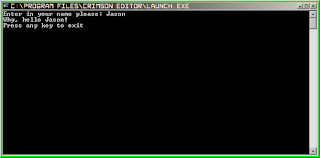
If you press Ctrl+9 you will produce a new makefile, compile, and execute in one step.

This article was meant as an introduction to using QB with Crimson Editor. With ingenuety and time you can adapt and expand the toolset to suit your needs.